
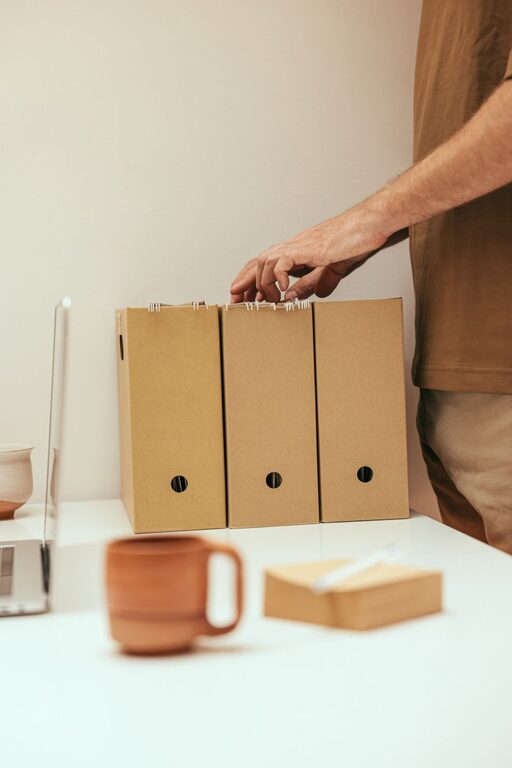
Keeping your computer files organized is essential for staying productive and reducing frustration when searching for important documents. Whether you use your computer for work, hobbies, or personal projects, establishing a good file management system can save time and help maintain a clutter-free digital environment. In this post, we’ll explore straightforward tips to get your files in order and keep them that way.
Why Organizing Files Matters
Digital clutter can slow down your workflow and make backups or transfers more complicated. An organized system:
– Makes it easier to find files quickly
– Reduces duplication and unnecessary storage use
– Helps prevent accidental deletion of important documents
– Simplifies backing up and sharing files
Start with a Clear Folder Structure
Creating a logical folder structure is the foundation of file organization.
Plan Your Main Folders
Consider the main categories relevant to your computer use. For example:
– Work
– Personal
– Finances
– Photos
– Projects
– Software
Keep the categories broad but distinct.
Use Subfolders to Add Detail
Within each main folder, create subfolders to organise files by topic, date, or type.
For example, inside “Work” you could have:
– Reports
– Meetings
– Presentations
– Contracts
This hierarchy shortens the path to find documents.
Consistent and Descriptive File Naming
Names should tell you what the file contains without opening it.
Tips for Naming Files
– Use clear, descriptive words (e.g., “June_Sales_Report_2024”)
– Avoid vague names like “Document1” or “Untitled”
– Include dates in a consistent format (YYYY-MM-DD is best for sorting)
– Use underscores or hyphens instead of spaces to ensure compatibility
Consistent naming helps quickly spot files and sort them logically.
Use Tags and Metadata (if available)
Many operating systems and programs allow you to add tags or metadata to files.
– Tags can label files by project, priority, or status
– Use colour coding or stars to highlight frequently accessed files
– Metadata fields can describe file contents in detail
This extra information helps with searching and filtering your files.
Regularly Declutter and Archive
File organization is an ongoing task. Set a schedule to review and clean up your folders.
Tips for Decluttering
– Delete duplicates and unnecessary files
– Archive old files in separate folders or external drives
– Move completed projects out of active work folders
Keeping only current and relevant files visible maintains order and boosts efficiency.
Use Cloud Storage and Backups
Backing up files is a critical part of organisation since it protects against data loss.
– Use cloud storage services like Google Drive, OneDrive, or Dropbox for easy access and sharing
– Keep a local backup on an external hard drive or USB
– Regularly sync backups to ensure up-to-date copies
Cloud services often include file version history, which adds extra security.
Leverage File Management Tools
Consider using software tools to help with organising and searching your files.
Recommendations
– File Explorer (Windows) or Finder (Mac) for basic organisation
– Third-party apps like Everything (Windows) for fast searching
– Duplicate file finders to remove unnecessary copies
– Automation tools to move and rename files based on rules
These tools save time and reduce manual maintenance.
Create a File Organizing Routine
Set simple daily or weekly habits to keep your files tidy.
– Save files directly into the correct folder when creating or downloading
– Deal with new files immediately rather than letting them pile up on the desktop
– Schedule weekly time for reviewing and organising recent downloads and documents
Developing these routines prevents disorganisation from creeping back.
—
Maintaining an organised computer is a manageable task with the right approach. By setting up a clear folder structure, using consistent file naming, leveraging tags, and committing to regular upkeep, you’ll enjoy a more streamlined and stress-free digital workspace. Start implementing these tips today and feel the difference in your daily computer use.
About the Author